Customers do not choose a channel to make your work easier. One messages on LINE because they use it every day. Another messages on Instagram because they saw a post. Another fills in the chat on your website at night. If your team has to open a separate app for each channel, the problems that follow are almost the same in every business: messages that nobody sees, the same customer being asked twice, answers that differ from person to person, and an owner who does not know where work is stuck.
A unified inbox solves this by putting every channel in one place. But the inbox alone is not enough. What makes a team work well is the rule about who looks after what, and customer information that follows the customer across every channel. This article walks through the order in which to do it.
Step 1Choose the channels your customers really use
Start from the list of channels customers use to contact you today, not the channels you wish you had. Upsize Chat can connect LINE (including multiple OA accounts), Facebook Pages, Instagram, WhatsApp and Website Chat, which is a chat widget embedded on your own website. The "Channels" page provides the embed code and the values you need to copy into each platform's console.
For Facebook and Instagram, there is a connect button through the Upsize app, so you do not need to set up a webhook yourself on the Meta side, unless you want to use your own Meta app.
The tip is to connect your two busiest channels first, get comfortable with them, and then add the next one. Connecting everything in one day leaves the team unprepared and makes it hard to tell which channel a problem comes from.
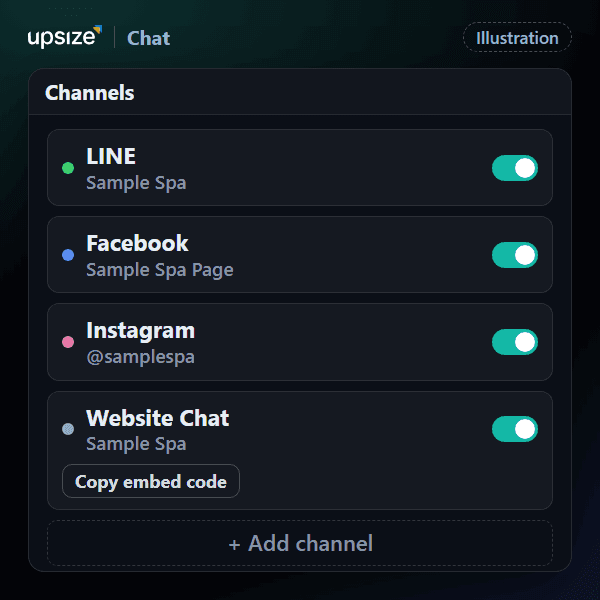
In the picture, four channels are connected, and Website Chat has a button to copy the embed code.
Step 2Give every conversation a clear owner
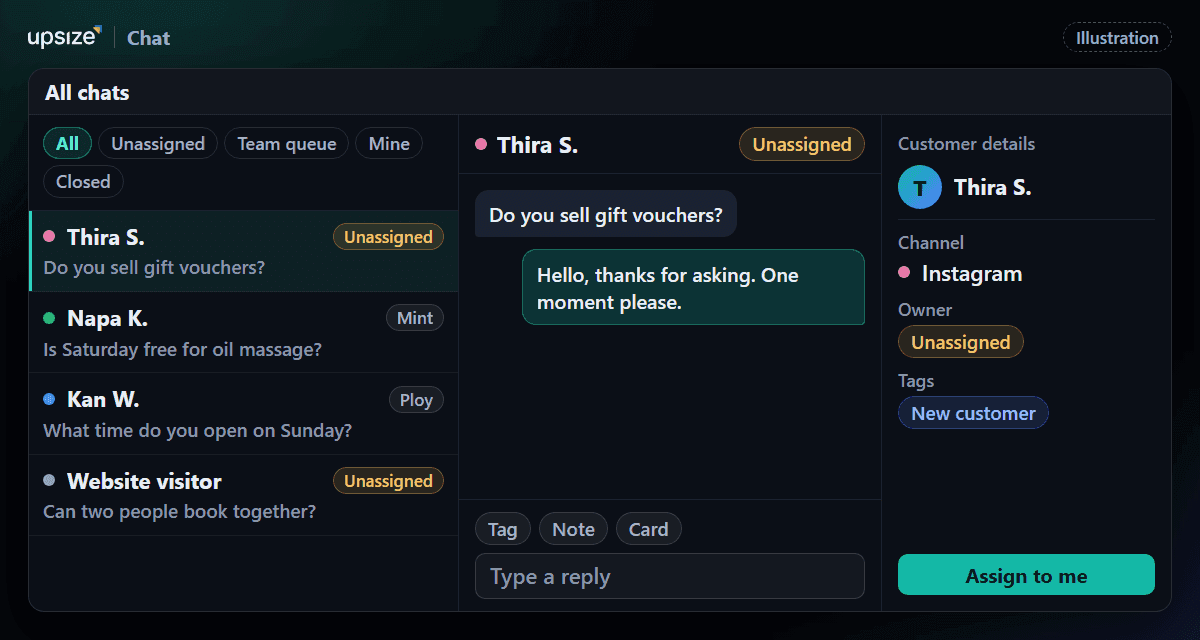
The "All chats" page in Upsize Chat shows conversations from every channel in a single list, with tabs that filter by handling status: All, Unassigned, Team queue, Mine and Closed. Staff can press "Assign to me" to take a case themselves, and managers can assign it to someone else.
When cases start to pile up, let the system help distribute them. In the settings page there is a section called "Auto-assign", which lets the system choose who is responsible the moment a customer messages you. You can adjust it as follows:
- Turn it on or off. If it is off, new cases wait in the "Unassigned" tab as before.
- Choose the rule for picking a person from the list of rules the system supports.
- Untick people who should not receive cases automatically, such as team leads. You can still assign cases to them by hand as normal.
- Organise people into teams and link each channel to the team that handles it. For example, the sales LINE account goes to the sales team and another channel goes to the after-sales service team. If the chosen team has nobody available, the case waits in that team's queue and does not slip over to people outside the team.
Whoever assigns a case by hand always overrides the system, so it is flexible enough for real-world work.
Step 3One profile per customer
The same person might message you on LINE today and on Instagram next week. If the system treats them as two people, your team has to start from zero every time. In Upsize, the contacts page has a "Merge as one person" tool, where the team selects the profiles that belong to the same person and merges them. The system picks the primary profile automatically. The chats, history and channels of every profile are all kept and shown together, and if you merge by mistake, you can separate them again from the contact detail page. No data is deleted.
The system warns you when they might be different people, for example when there is more than one verified contact and the phone numbers do not match. Check carefully before you merge. The detail page also keeps a history of merges so you can look back at it later.
Step 4Use AI to help reply, then hand over to a person smoothly
AI is not there to replace your team. It takes the repetitive questions that come in every day, such as opening hours, how to book, or warranty terms. The system has modes you can choose per account or channel:
- Off. Your team replies to everything.
- Assistant for staff. Staff can ask the AI to help draft a reply or summarise a case, but no message is sent to the customer by itself.
- AI answers first. The assistant replies to the customer itself, then hands over to a person when it is not confident.
The recommended order is to start with Assistant for staff, watch the quality of the answers for a while, and only then turn on AI answers first for the channels that are ready.
What makes the AI answer well is a knowledge base that you control. You can add three kinds of content: frequently asked questions, free text, and uploaded documents (PDFs that contain text, .txt and .md files). Then try asking questions on the test page before you turn it on for real customers. The system also collects "Questions the assistant could not answer" for you, and you can press "Add as FAQ" to teach it immediately. This is how your knowledge base grows in line with what customers really ask. Assistant and knowledge base settings are in the Organization Management Center and are shared across every chat site, and using AI draws on the AI credits shared by the whole organisation.
The most important point is the handover. The assistant can only trigger automations for sending messages and adding tags. Things like creating an appointment, deducting points or issuing a document must be done by staff. There is also the option "Hold the case while AI is handling it", so staff are not called in before the AI actually hands over. Even so, staff can always take a case themselves at any time.
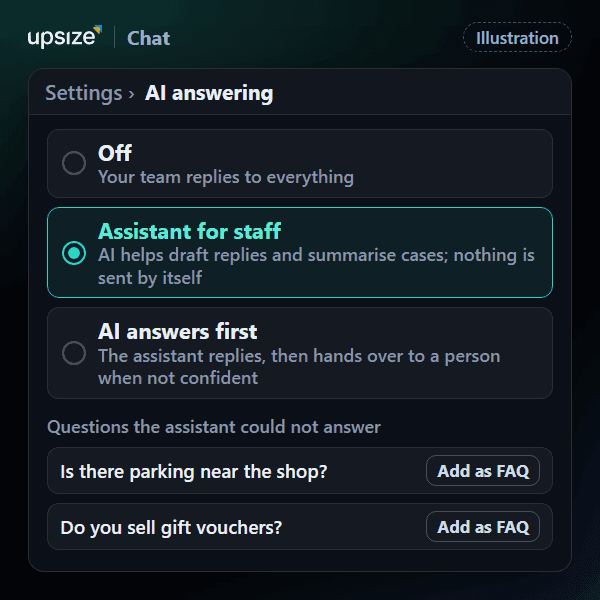
The mode selected in the picture is Assistant for staff, the one the article suggests starting with.
Tools in the chat room that help you reply faster
While replying, staff can add tags, write internal notes, view customer details in the side panel, and send product, service or document cards to the customer in the chat. If your organisation also uses Booking or Loyalty, the side panel shows that customer's appointments and membership tier too, so staff can reply without switching to another app.
Common mistakes
- Connecting every channel at once, when the team does not yet have rules about who answers what.
- Nobody responsible for new cases, so cases sit in the "Unassigned" tab without anyone noticing.
- Turning on AI to answer by itself right away, before any knowledge has been added and without ever testing it with questions.
- Forgetting to prepare the handover point. Be clear about which kinds of questions must be answered by a person and which team takes them.
- Not reviewing the questions the AI could not answer. They are the best source of information about what customers want to know.
A simple way to start
- Connect your two busiest channels first.
- Agree who looks after which type of conversation, and set up teams and auto-assign to match what you agreed.
- Gather the questions you answer most often as the starting point for your knowledge base.
- Turn on AI in Assistant for staff mode first, and move to other modes once you are confident.
- Review after a while. Look at the "Unassigned" tab and the questions the AI could not answer, then add the next channel.
Upsize Chat brings together channels, case assignment, unified customer profiles and an AI assistant, and works with Upsize CRM, Booking and Loyalty under a single login.